
How to Install ELS for FiveM
Install a FiveM ELS resource, configure vehicle VCF files and check startup errors. Includes legacy MrDaGree setup notes and the single-player distinction.
To install ELS for FiveM, configure an ELS server resource and the vehicle configuration files it expects. A single-player tutorial that copies ELS.ini and ScriptHookV files into GTA V is not a substitute for installing that resource on a FiveM server.
This guide explains the distinction and uses the archived MrDaGree/ELS-FiveM project as a concrete legacy example. The inspected source snapshot is commit 0f28de3. Its layout is not a promise that every release, fork or current game build works the same way. Our review status and compatibility limitations still apply; these instructions have not been tested in-game.
What is ELS?
ELS means Emergency Lighting System. Before downloading anything, identify which setup you need:
- Single-player GTA V: use the selected single-player mod’s own requirements and installation instructions.
- FiveM server: use an implementation designed as a FiveM resource, with its matching vehicle configurations.
- Non-ELS vehicles: check whether a controller such as Luxart Vehicle Control fits the vehicle author’s requirements instead. LVC and ELS are not interchangeable packages.
The FiveM ELS download and project overview explains the archived project and where to find its release history.
Installation process
Start on a test server and back up the configuration and vehicle resources you will change. Keep one known-working vehicle as a baseline so that a vehicle problem does not get mistaken for an ELS startup problem.
The video below is an older vehicle-installation reference, not evidence of current FiveM compatibility. Check its game mode and package against the written instructions before copying any steps.
Step 1: Check prerequisites
You need access to the server’s resources, server.cfg and console, a selected FiveM ELS package, and a vehicle with configurations intended for that implementation. Players joining someone else’s server should ask its staff which resources and vehicles it uses rather than uploading their own server files.
For the server itself, start with the version-scoped FivePD server setup guide. Adding ELS is a separate resource change, not part of installing FivePD’s core files.
Step 2: Choose the correct ELS download
Open the MrDaGree ELS-FiveM project and its release history. The repository is archived. Its README distinguishes the development branch from releases; a source ZIP should not automatically be treated as a maintained, ready-to-install release.
Keep the instructions that accompany your selected package. Older release archives can differ from the source layout shown below, including the manifest filename. Do not mix files from different releases just to make a directory look like this example.
Step 3: Understand the client-side distinction
In the inspected FiveM implementation, the resource manifest declares both client and server scripts. Those are part of the server resource setup.
Copying a single-player ELS.ini, dinput8.dll or ScriptHookV.dll into your GTA V folder does not install this FiveM resource. Follow the community’s client requirements separately and do not apply a single-player installer to a multiplayer installation simply because both use the name ELS.
Step 4: Place the resource on the server
In the inspected repository, the resource is the inner ELS-FiveM directory, which contains the manifest. Avoid an extra nesting level such as ELS-FiveM-master/ELS-FiveM/fxmanifest.lua beneath the intended resource folder.
For that source layout, a resource directory could look like this after configuration:
resources/
  [emergency]/
    ELS-FiveM/
      fxmanifest.lua
      config.lua
      vcf.default.lua
      vcf.lua
      vcf/
      shared/
      client/
      server/
Keep the package’s other files as supplied. With the resource folder named ELS-FiveM, the corresponding server.cfg entry is:
ensure ELS-FiveMThe name must match the actual resource directory. According to the Cfx.re server-command reference, refresh discovers resource changes, and ensure starts a stopped resource or restarts a running one when executed. It is not a continuous crash-recovery service.
Configure the vehicle files
The legacy README instructs users to copy vcf.default.lua to vcf.lua, keep the original, and place vehicle configuration files in the resource’s vcf directory.
Use the VCF supplied for your particular vehicle and implementation. A VCF is a configuration file; it does not install the vehicle model. Follow the vehicle author’s separate resource instructions and check filenames, capitalization and the configured vehicle names together.
Convars for diagnosis
The archived README documents the following convars. These are legacy project settings, not settings shared by every ELS resource.
| Convar | Documented purpose | Documented default |
|---|---|---|
els_outputLoading | Report the configured vehicles as they load. | false |
els_debug | Enable diagnostic output. | false |
els_developer | Enable developer features; leave off for ordinary setup. | false |
els_warnOnJoin | Enable the project’s version-warning behavior. | false |
For example, setr els_debug true enables the documented debug setting. Capture the relevant error and return diagnostic settings to their previous values after testing. An archived version checker is not proof that a package is supported today.
Step 5: Configure VCF entries and controls
The inspected vcf.default.lua defines a vcf_files list. A deliberately minimal example, only for a matching POLICE.xml file, is:
vcf_files = {
    "POLICE.xml"
}
This illustrates the list shape, not a complete configuration for your fleet. Edit your copied vcf.lua to match the files you actually installed. The inspected config.lua contains keyboard, controller and panel settings; a single-player ELS.ini is not its configuration file.
Controls: check the installed configuration
Bindings can differ between implementations and server configurations. Use the selected package’s control reference and actual configuration rather than treating an online key list as universal.
Keyboard
The inspected config.lua comments label Q for stage changes, 1, 2 and 3 for siren tones, and 9, 8 and 7 for pattern controls. These are source examples, not a guarantee of the keys on another server. Check modifier behavior and conflicts in the installed resource before changing bindings.
Controller
The same configuration defines controller actions with numeric control IDs. Check the implementation and your device’s mappings instead of assuming that a keyboard shortcut or an Xbox button label transfers directly to every controller.
Step 6: Test one vehicle first
Confirm that the resource starts without errors, then test one vehicle with its matching VCF. Check stage changes, siren tones and any supported directional or takedown features separately. Have a second player observe the result when testing multiplayer behavior.
Only add the remaining fleet after that baseline works. If the test fails, record the resource version, vehicle package, server build and first relevant console error before changing another setting.
Common issues and troubleshooting
| Symptom | First checks |
|---|---|
| Resource does not start | Manifest location, resource name in server.cfg, missing files and the first server-console error. |
| Vehicle spawns but ELS does not respond | Matching vehicle/VCF, filename and case, the vcf_files entry, and client-console errors. |
| Keys do something unexpected | Installed bindings, modifier behavior and competing vehicle-control resources. |
| Model or textures are missing | Vehicle installation first; changing a lighting keybind will not supply a missing model. |
For missing models, review custom police vehicle installation. For a broader startup problem, use the FivePD troubleshooting guides rather than changing lighting settings at random.
Tips for a maintainable setup
Keep a note of the exact packages and configuration changes that produced a working test. Add one vehicle or controller at a time, retain a rollback copy, and repeat the test after server or game updates. Do not enable overlapping lighting controllers without checking their documented coexistence requirements.
Understanding the panel
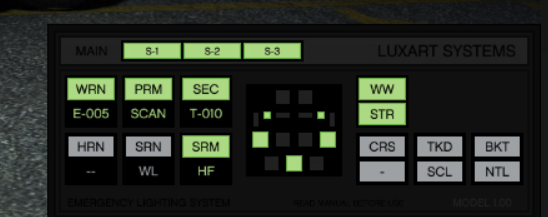
This retained screenshot illustrates a panel layout. It does not establish which release is installed, prove that it is a Luxart product, or define every abbreviation. The configuration and documentation of the actual resource take precedence.
Lighting stages
Treat stage buttons as implementation-specific states. Test which vehicle lights each stage activates rather than assuming every S-1, S-2 or S-3 label corresponds to the same parking, warning or response pattern.
Buttons and configuration
Separate the control binding, the selected lighting pattern and the vehicle’s physical lights when diagnosing a button that appears to do nothing.
Primary, secondary and warning groups
The inspected configuration contains primary, secondary and warning controls. Match the selected action to the installed VCF; panel abbreviations alone are not a complete setup reference.
Pattern indicators
The configuration distinguishes primary, secondary and advisor pattern controls. Labels such as E-005 and T-010 in a screenshot should not be interpreted as documented presets or timers without the matching panel documentation.
Horn and siren controls
The source separates the shared horn control from siren-tone controls. Check sound behavior separately from lighting behavior; a visible light change does not verify that a siren configuration is correct.
Directional controls
Test directional features only on a vehicle and configuration that provide them. A panel arrow is not evidence that every installed model has the corresponding lighting feature.
Additional panel buttons
Compare extra panel labels with your resource’s documentation before assigning functions to them. Do not copy a different controller’s button descriptions simply because its panel looks similar.
Takedown and other special functions
The inspected configuration includes a takedown binding. Other abbreviations in this image are not a verified feature list for your package; check the source and vehicle documentation before relying on them.
How to use the panel during testing
Start with the known-working vehicle, change one control at a time, and observe both lights and sound. Keep the logs available and compare the effect with the selected configuration before testing additional vehicles.
Next steps
Use the ELS project and download overview to identify the implementation, then keep its own documentation alongside your configuration. Source inspection helps correct the setup process; it does not replace testing your chosen package, vehicle and game build together.
Continue with a related guide
- Compare police vehicles for GTA V
Explore vehicle options before checking each author's FiveM requirements.