
ELS for FiveM: Downloads, Vehicles and Controls
Find ELS for FiveM download sources, vehicle configuration guidance and controls. Understand the archived MrDaGree project and how it differs from LVC.
What is FiveM ELS?
ELS for FiveM refers to emergency-lighting resources used with compatible vehicle configurations. This page focuses on MrDaGree/ELS-FiveM, a legacy implementation, rather than treating every download named ELS as the same product.
Choose the resource together with the vehicle author’s instructions. A single-player GTA V ELS package, a FiveM resource and Luxart Vehicle Control for non-ELS vehicles are different setups. FivePD itself does not establish that an arbitrary lighting resource or vehicle pack is compatible.
Preview
This older project video illustrates the implementation, not its compatibility with your current server or game build.
Download ELS for FiveM
Start with the MrDaGree ELS-FiveM release history and project repository. GitHub marks this repository as archived. Do not mistake an old release asset or a development-branch ZIP for a newly maintained release.
The inspected README distinguishes development source from releases. Read the documentation that accompanies the package you select, including any vehicle requirements. FivePDMod.com is an independent guide site, not this software’s publisher, and has not verified downloaded binaries or current in-game compatibility. See our source-review scope.
How to install ELS
Follow the FiveM ELS server installation and VCF guide. It covers the resource directory, server.cfg, vehicle configuration files and diagnosis of startup errors.
For the inspected legacy source, vehicle XML files belong in the resource’s vcf directory and are listed in vcf.lua, copied from vcf.default.lua. These files configure vehicles; they do not supply missing vehicle models. Use the selected release’s own layout rather than combining unrelated ELS tutorials.
ELS functions and control panels
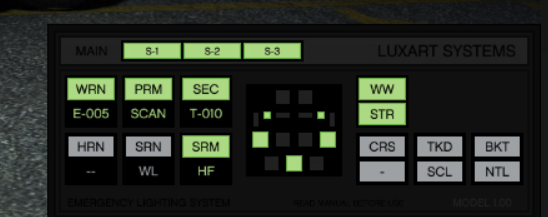
The image is retained as a visual reference, not a verified Luxart product screenshot or a universal control chart. Panel labels, supported functions and bindings depend on the implementation and configuration.
Buttons and functions explained
Use the installed configuration and controls as the starting point. A button label alone cannot tell you which vehicle lights or sounds a particular server has configured.
Primary, secondary and warning controls
Check the resource’s lighting groups and the vehicle VCF together. Do not infer a fixed keybind or light pattern from WRN, PRM or SEC in an image.
Pattern selection
Pattern indicators are not automatically timers or presets that work with every car. The installation guide explains pattern controls and their limitations.
Horn and siren controls
Test siren tones separately from the lights. For audio changes, use the custom sounds and sirens guide and the selected sound package’s requirements.
Directional controls
Directional lighting needs a matching vehicle and configuration. Check those before assuming that an arrow on the panel should activate a feature on any model.
Additional controls
Extra buttons vary by controller and panel. Avoid copying controls from single-player ELS or another FiveM implementation solely because the names look familiar.
Special functions
Verify takedown and other additional features against the selected package. A screenshot is not a specification for undocumented abbreviations.
How to test your ELS panel
Use one known-working vehicle, test each control individually and watch the server and client logs. The ELS troubleshooting checklist helps distinguish resource startup, vehicle-file and binding problems before you add more vehicles.
Continue with a related guide
- Compare police vehicles for GTA V
Explore vehicle options before checking each author's FiveM requirements.
- FivePD troubleshooting guides
Find a diagnostic guide before replacing files or adding more resources.